Setup requirements
Install terraform
brew install terraformInfrastructure as Code with Terraform
Create an ECR repository on AWS → create an ECS cluster → run a container service on Fargate → push the Docker image → obtain a public IP and access the service.
Understanding Infrastructure as Code (IaC)
- Problem: Manual clicking is error-prone and not repeatable
- Solution: Define infrastructure in code files
- Benefits: Version control, peer review, automated deployments
- Terraform: Most popular IaC tool, works with multiple cloud providers
Step 1: Prepare Terraform Files
-
Create a new directory for Terraform:
mkdir terraform-ecs cd terraform-ecs -
Create the following files:
variables.tf- Defines input variables for parameterizing the configuration:
variable "aws_region" {
  description = "AWS region for resources"
  type        = string
  default     = "us-east-1"
}

variable "service_name" {
  description = "Name of the ECS service"
  type        = string
  default     = "hello-service"
}

variable "ecr_repository_name" {
  description = "Name of the ECR repository"
  type        = string
  default     = "hello-service"
}

variable "desired_count" {
  description = "Number of tasks to run"
  type        = number
  default     = 1
}

variable "container_port" {
  description = "Port the container listens on"
  type        = number
  default     = 8080
}
main.tf - Main configuration with providers and data sources:
terraform {
  required_providers {
    aws = {
      source  = "hashicorp/aws"
      version = "~> 5.0"
    }
  }
  required_version = ">= 1.0"
}

provider "aws" {
  region = var.aws_region
}

# Data source to get default VPC
data "aws_vpc" "default" {
  default = true
}

# Data source to get default subnets
data "aws_subnets" "default" {
  filter {
    name   = "vpc-id"
    values = [data.aws_vpc.default.id]
  }
}
ecr.tf - ECR repository resource configuration:
# Create ECR repository
resource "aws_ecr_repository" "app_repo" {
  name                 = var.ecr_repository_name
  image_tag_mutability = "MUTABLE"

  image_scanning_configuration {
    scan_on_push = false
  }

  tags = {
    Name        = var.ecr_repository_name
    Environment = "dev"
  }
}

# Output the repository URL
output "ecr_repository_url" {
  value = aws_ecr_repository.app_repo.repository_url
}
ecs.tf - ECS resources including cluster, task definition, and service:
# ECS Cluster
resource "aws_ecs_cluster" "main" {
  name = "${var.service_name}-cluster"

  tags = {
    Name        = "${var.service_name}-cluster"
    Environment = "dev"
  }
}

# Task Execution Role (using LabRole)
data "aws_iam_role" "lab_role" {
  name = "LabRole"
}

# ECS Task Definition
resource "aws_ecs_task_definition" "app" {
  family                   = "${var.service_name}-task"
  network_mode             = "awsvpc"
  requires_compatibilities = ["FARGATE"]
  cpu                      = "256"
  memory                   = "512"
  execution_role_arn       = data.aws_iam_role.lab_role.arn
  task_role_arn            = data.aws_iam_role.lab_role.arn

  container_definitions = jsonencode([
    {
      name  = "${var.service_name}-container"
      image = "${aws_ecr_repository.app_repo.repository_url}:latest"

      portMappings = [
        {
          containerPort = var.container_port
          protocol      = "tcp"
        }
      ]

      logConfiguration = {
        logDriver = "awslogs"
        options = {
          "awslogs-group"         = aws_cloudwatch_log_group.ecs_logs.name
          "awslogs-region"        = var.aws_region
          "awslogs-stream-prefix" = "ecs"
        }
      }
    }
  ])

  tags = {
    Name        = "${var.service_name}-task"
    Environment = "dev"
  }
}

# CloudWatch Log Group
resource "aws_cloudwatch_log_group" "ecs_logs" {
  name              = "/ecs/${var.service_name}"
  retention_in_days = 7

  tags = {
    Name        = "${var.service_name}-logs"
    Environment = "dev"
  }
}

# Security Group (with -tf- to avoid conflicts with manual creation)
resource "aws_security_group" "ecs_service" {
  name        = "${var.service_name}-tf-sg"
  description = "Security group for ${var.service_name} ECS service"
  vpc_id      = data.aws_vpc.default.id

  ingress {
    from_port   = var.container_port
    to_port     = var.container_port
    protocol    = "tcp"
    cidr_blocks = ["0.0.0.0/0"]
    description = "Allow inbound traffic on container port"
  }

  egress {
    from_port   = 0
    to_port     = 0
    protocol    = "-1"
    cidr_blocks = ["0.0.0.0/0"]
    description = "Allow all outbound traffic"
  }

  tags = {
    Name        = "${var.service_name}-tf-sg"
    Environment = "dev"
  }
}

# ECS Service
resource "aws_ecs_service" "app" {
  name            = var.service_name
  cluster         = aws_ecs_cluster.main.id
  task_definition = aws_ecs_task_definition.app.arn
  desired_count   = var.desired_count

  capacity_provider_strategy {
    capacity_provider = "FARGATE_SPOT"
    weight            = 100
    base              = 0
  }

  capacity_provider_strategy {
    capacity_provider = "FARGATE"
    weight            = 0
    base              = 0
  }

  network_configuration {
    subnets          = data.aws_subnets.default.ids
    security_groups  = [aws_security_group.ecs_service.id]
    assign_public_ip = true
  }

  tags = {
    Name        = var.service_name
    Environment = "dev"
  }
}
outputs.tf - Output values for easy access to created resources:
output "cluster_name" {
  description = "Name of the ECS cluster"
  value       = aws_ecs_cluster.main.name
}

output "service_name" {
  description = "Name of the ECS service"
  value       = aws_ecs_service.app.name
}

output "get_public_ip_command" {
  description = "Command to get the public IP of the running task"
  value       = <<-EOT
    aws ecs list-tasks --cluster ${aws_ecs_cluster.main.name} --service-name ${aws_ecs_service.app.name} --query 'taskArns[0]' --output text | \
    xargs -I {} aws ecs describe-tasks --cluster ${aws_ecs_cluster.main.name} --tasks {} --query 'tasks[0].attachments[0].details[?name==`networkInterfaceId`].value' --output text | \
    xargs -I {} aws ec2 describe-network-interfaces --network-interface-ids {} --query 'NetworkInterfaces[0].PublicIp' --output text
  EOT
}
terraform.tfvars - Variable values to customize the deployment:
aws_region          = "us-east-1"
service_name        = "hello-service"
ecr_repository_name = "hello-service-terraform"  # Different name to avoid conflicts
desired_count       = 1
container_port      = 8080
Step 2: Initialize and Plan
Note: Make sure you are in the terraform-ecs folder when running terraform commands!
- Initialize Terraform:
cd terraform-ecs
terraform init
This downloads the AWS provider and prepares your working directory.
- Validate configuration:
terraform validateShould return “Success! The configuration is valid.”
- Preview changes:
terraform planThis shows what Terraform will create without actually creating it.
Step 3: Apply Terraform Configuration
-
Ensure your Docker image is ready:
- If creating a new ECR repo, you’ll need to push your image after Terraform creates it
- Note the ECR URL from the plan output
-
Apply the configuration:
terraform apply- Review the planned changes
- Type
yeswhen prompted - Wait for resources to be created (2-3 minutes)
-
Push Docker image to new ECR:
# Get the new ECR URL from Terraform output NEW_ECR_URL=$(terraform output -raw ecr_repository_url) echo "New ECR URL: $NEW_ECR_URL" # Extract base URL for login ECR_BASE=$(echo $NEW_ECR_URL | cut -d'/' -f1) # Login to ECR aws ecr get-login-password --region us-east-1 | docker login --username AWS --password-stdin $ECR_BASE # Tag and push docker tag hello-service:latest ${NEW_ECR_URL}:latest docker push ${NEW_ECR_URL}:latest -
Update ECS Service (force new deployment):
aws ecs update-service --cluster hello-service-cluster --service hello-service --force-new-deployment
Step 4: Get Public IP and Test
-
Get the public IP (zsh/bash compatible):
# Get cluster and service names from Terraform CLUSTER=$(terraform output -raw cluster_name) SERVICE=$(terraform output -raw service_name) # Get task ARN TASK_ARN=$(aws ecs list-tasks \ --cluster $CLUSTER \ --service-name $SERVICE \ --query 'taskArns[0]' \ --output text) # Get ENI ID ENI_ID=$(aws ecs describe-tasks \ --cluster $CLUSTER \ --tasks $TASK_ARN \ --query 'tasks[0].attachments[0].details[?name==`networkInterfaceId`].value' \ --output text) # Get Public IP (with fallback) PUBLIC_IP=$(aws ec2 describe-network-interfaces \ --network-interface-ids $ENI_ID \ --query 'NetworkInterfaces[0].Association.PublicIp' \ --output text) if [[ -z "$PUBLIC_IP" ]] || [[ "$PUBLIC_IP" == "None" ]]; then PUBLIC_IP=$(aws ec2 describe-network-interfaces \ --network-interface-ids $ENI_ID \ --query 'NetworkInterfaces[0].PublicIp' \ --output text) fi echo "Public IP: $PUBLIC_IP" -
Test your service:
# Basic test
curl http://$PUBLIC_IP:8080/api/hello

# Test with your name
curl http://$PUBLIC_IP:8080/api/hello/YourName
Understanding Terraform State
- State File:
terraform.tfstatetracks your infrastructure - Important: Don’t delete this file or you’ll lose track of resources
- Best Practice: In production, store state in S3 with state locking
Screenshot Requirements
-
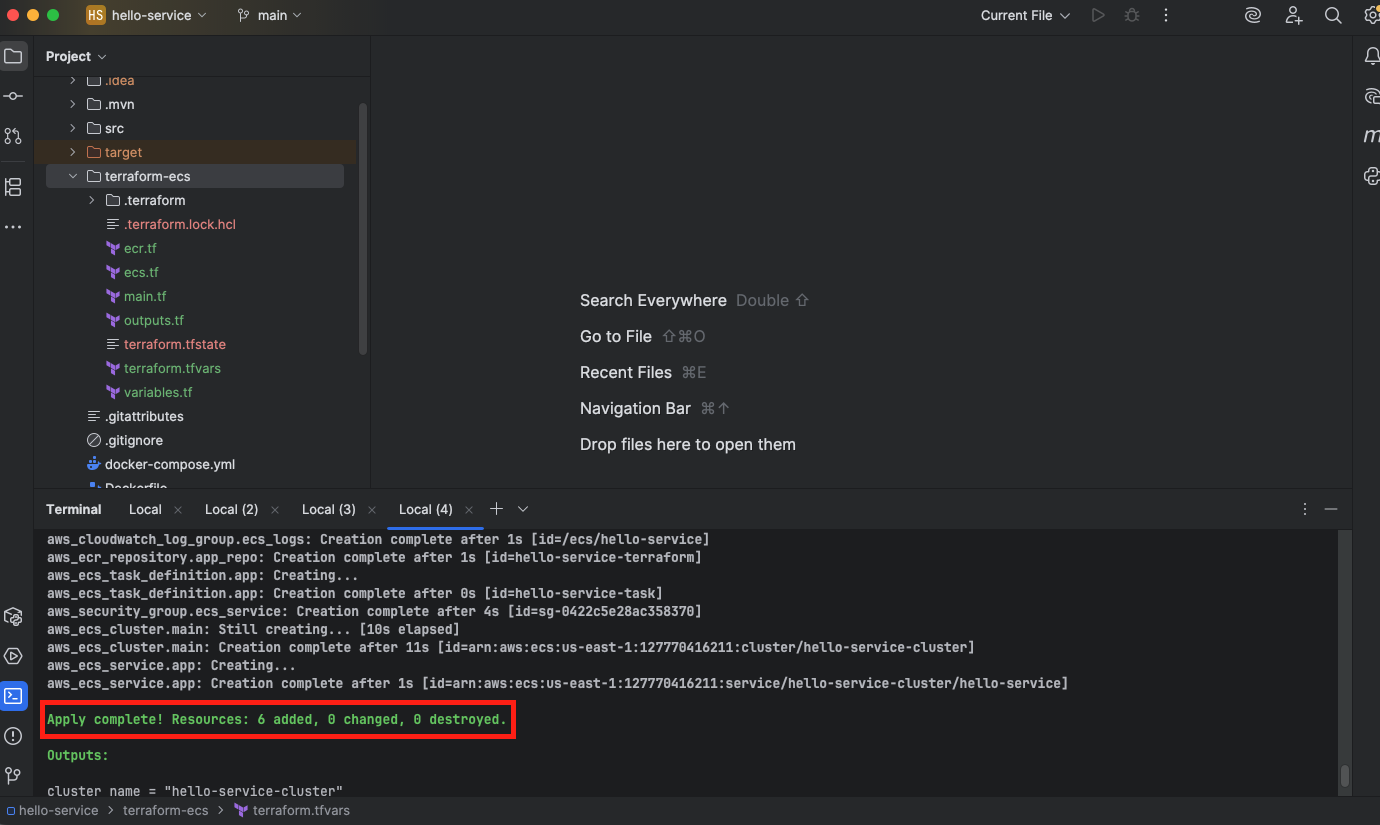
Successful
terraform applycompletion (showing “Apply complete!“)- Note: If you need to regenerate this output, you can safely run
terraform applyagain - it will show “Apply complete!” with “0 to add, 0 to change, 0 to destroy” if everything is already created
- Note: If you need to regenerate this output, you can safely run
-
The curl command with YOUR NAME and its successful response from the Terraform-deployed service

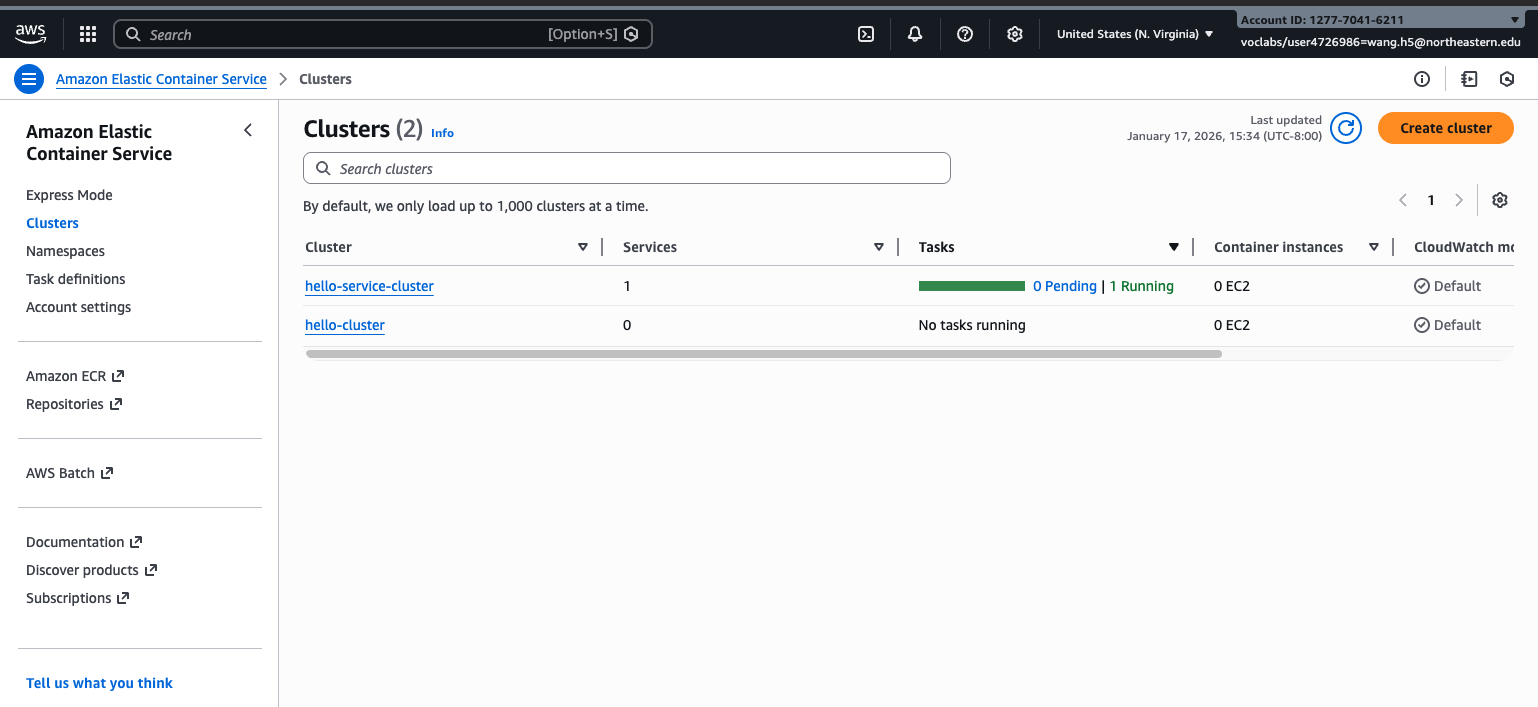
- The ECS console window with the deployed task in the Running State
Submit to Canvas before the deadline.
Troubleshooting Guide
Common AWS CLI Issues
| Issue | Solution |
|---|---|
| ”Unable to locate credentials” | Run aws configure with Learner Lab credentials |
| ”Token has expired” | Refresh Learner Lab session and reconfigure AWS CLI |
| ”Access Denied” | Ensure you’re using LabRole, not creating new IAM resources |
ECR Push Problems
| Issue | Solution |
|---|---|
| ”no basic auth credentials” | Make sure lab is running, re-run the AWS configure steps with correct credentials |
| ”repository does not exist” | Check ECR repository name matches exactly |
| ”EOF” during push | Network timeout - retry the push |
ECS Task Issues
| Issue | Solution |
|---|---|
| Task stops immediately | Check CloudWatch logs for Java errors |
| ”No space left on device” | Container may need more memory |
| Cannot pull image | Ensure image was pushed successfully to ECR |
| Port already in use | Your app might be trying to use a different port |
Terraform Errors
| Issue | Solution |
|---|---|
| ”Error acquiring state lock” | Delete .terraform.lock.hcl and retry |
| ”InvalidParameterException” | Check task definition CPU/memory combinations |
| ”AccessDenied” | Ensure AWS credentials are current |
| Resources already exist | Use different names or terraform destroy first |
Networking Issues
| Issue | Solution |
|---|---|
| No public IP assigned | Ensure “assign_public_ip = true” in Terraform |
| Connection refused | Check security group allows port 8080 |
| Connection timeout | Verify task is in RUNNING state |
| Couldn’t Connect to Server | Check the IP address by using the manual web pages to view Network Bindings for the running instance |
Windows-Specific Issues
- Terraform init fails: Run as Administrator or check antivirus
- Script execution blocked: Use
terraform output -raw get_public_ip_commandand run commands manually - Line ending issues: Ensure files use LF, not CRLF
Clean Up Resources
Important: Avoid Charges
Learner Lab has limited credits. Clean up resources when done:
-
Destroy Terraform resources:
terraform destroy # Type 'yes' when prompted -
Verify in AWS Console:
- ECS: No running tasks or services
- ECR: Can keep repository (minimal cost)
- CloudWatch: Logs will auto-expire
-
Manual cleanup (if needed):
- Stop any running ECS tasks
- Delete ECS services
- Delete ECS clusters
- Delete security groups (except default)
Key Concepts Summary
Amazon ECS Architecture
- Cluster: Logical grouping of compute resources
- Task Definition: Blueprint for running containers
- Task: Running instance of your container
- Service: Manages desired number of tasks
- Fargate: Serverless compute engine
Terraform Concepts
- Providers: Plugins that interact with APIs (AWS)
- Resources: Infrastructure components to create
- Variables: Parameterize your configuration
- State: Tracks what Terraform manages
- Plan/Apply: Preview and execute changes
Networking in ECS
- VPC: Virtual network for your AWS resources
- Subnet: Range of IP addresses in your VPC
- Security Group: Virtual firewall for your tasks
- Public IP: Allows internet access to your container
Additional Resources
AWS Documentation
Terraform Resources
Debugging Tools
- CloudWatch Logs: View container output and errors
- ECS Console: Visual interface for task management
- AWS CLI: Scriptable interface for automation
Next Steps
After completing this lab, you’re ready for:
- Assignment 1: Implement new REST endpoints and deploy
- Adding load balancers for production traffic
- Implementing auto-scaling policies
- Setting up CI/CD pipelines
- Exploring container orchestration patterns
Remember to turn off all your instances and resources etc in AWS when you finish each day.